Billing Management
Billing management
New: With billing management, you now have a clear overview of all your invoices and you can download them directly. It also includes your subscription status and a list of all features associated with your account.
The billing management feature is divided into three sections:
1. Your subscription
Under Your Subscription, you can see all details about your subscription.
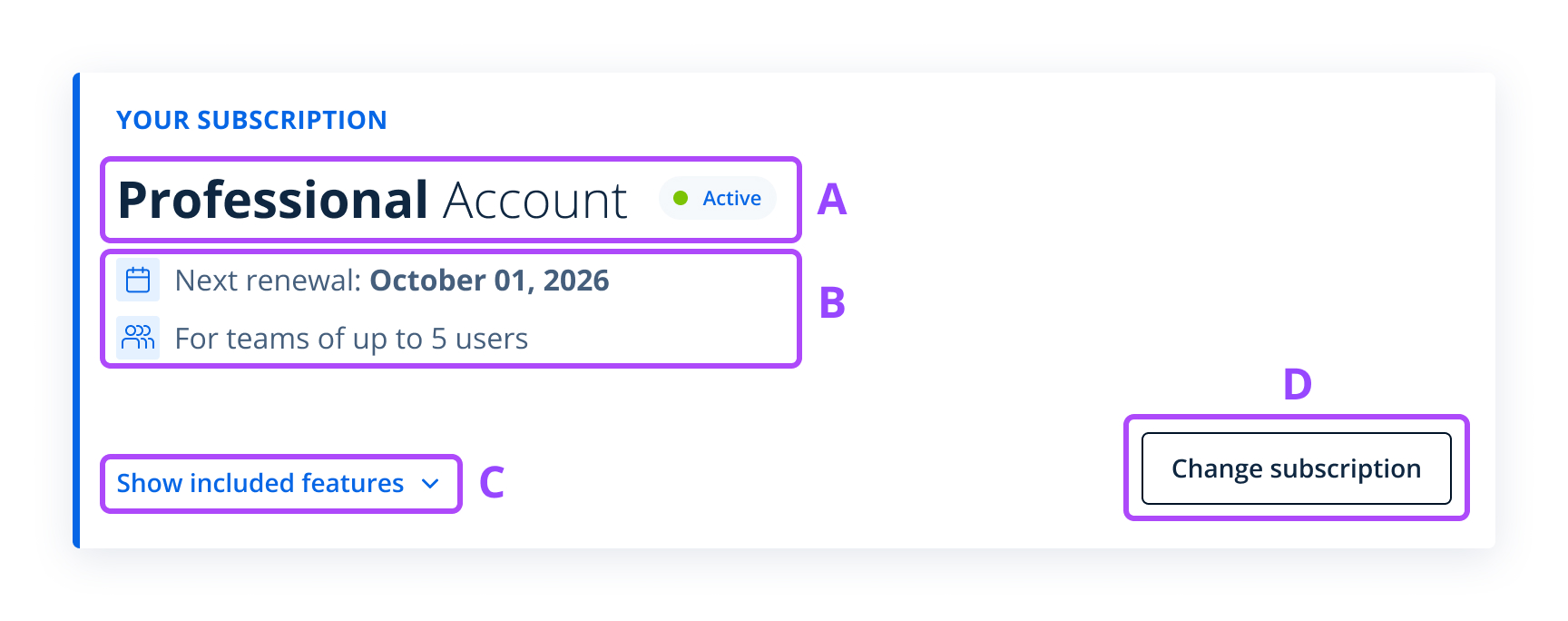
Here, you’ll find:
- A. The name of your subscription plan and its current status. Your account can have different statuses:
- Active – Your subscription is currently active.
- Upcoming – Your subscription is still being processed.
- Paused – Your subscription is temporarily paused.
- Canceled – Your subscription has been canceled.
- B. Important information, such as your next renewal or end date, and the number of seats included in your subscription.
- C. You can expand this card by clicking Show included features to see a list of all features and benefits included in your subscription.
- D. If you need to change or update your subscription, simply click Change subscription.
2. Payment methods
Here, you can add, update, or review your payment details for future invoices.
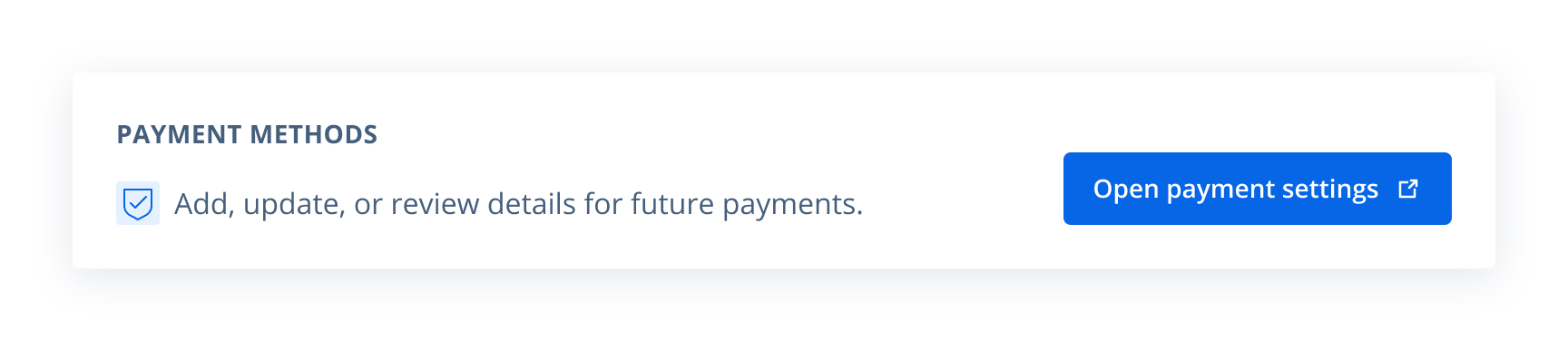
To manage your payment methods, click "Open payment settings". You will be redirected to a page where you can add or edit payment options such as credit card or Google Pay. After making your changes, click "Save" to confirm.
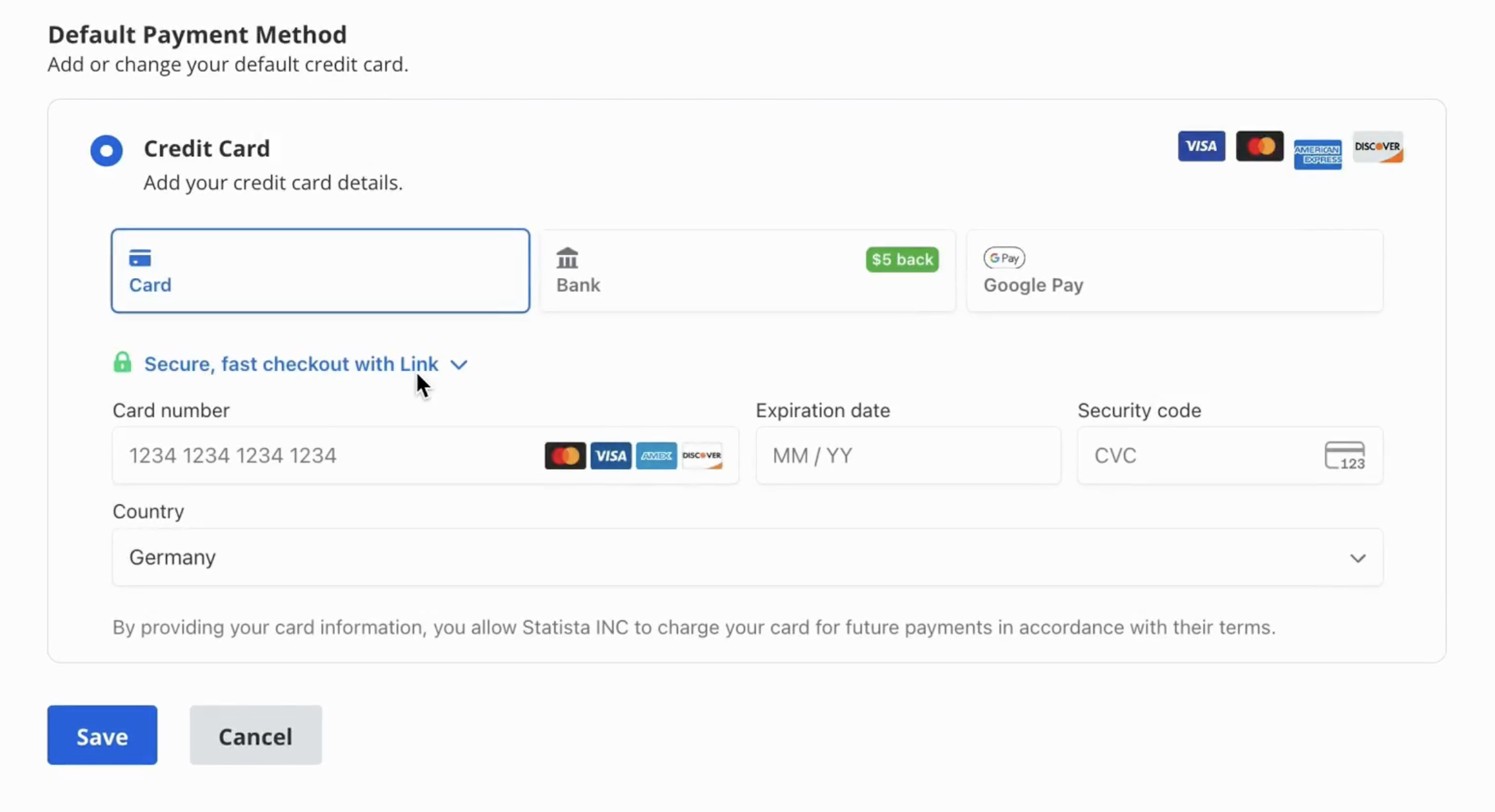
Please note: Only payment methods for future invoices can be added here. If an invoice is already overdue, adding a new payment method will not automatically settle it. In that case, use the "Pay now" button in the invoice table.
Available payment methods:
- Credit Card
- Google Pay
3. Invoice table
Here you’ll find all your invoices, sorted by date, with the most recent at the top. The status of each invoice shows whether it is open, paid, or overdue. Learn more about how to handle overdue invoices.
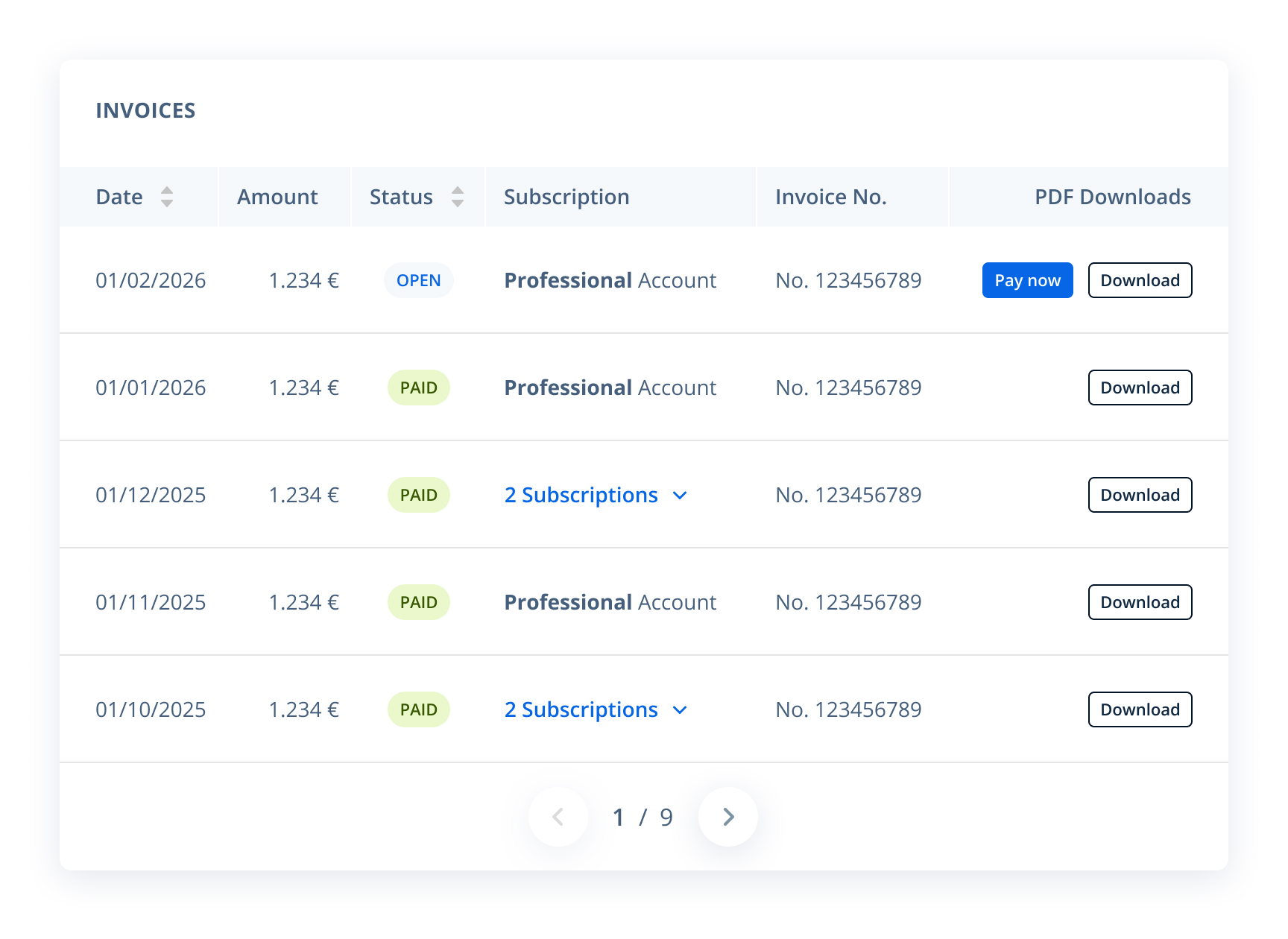
Some invoices may cover multiple subscriptions. If that’s the case, you can expand them in the list to see all associated subscriptions.
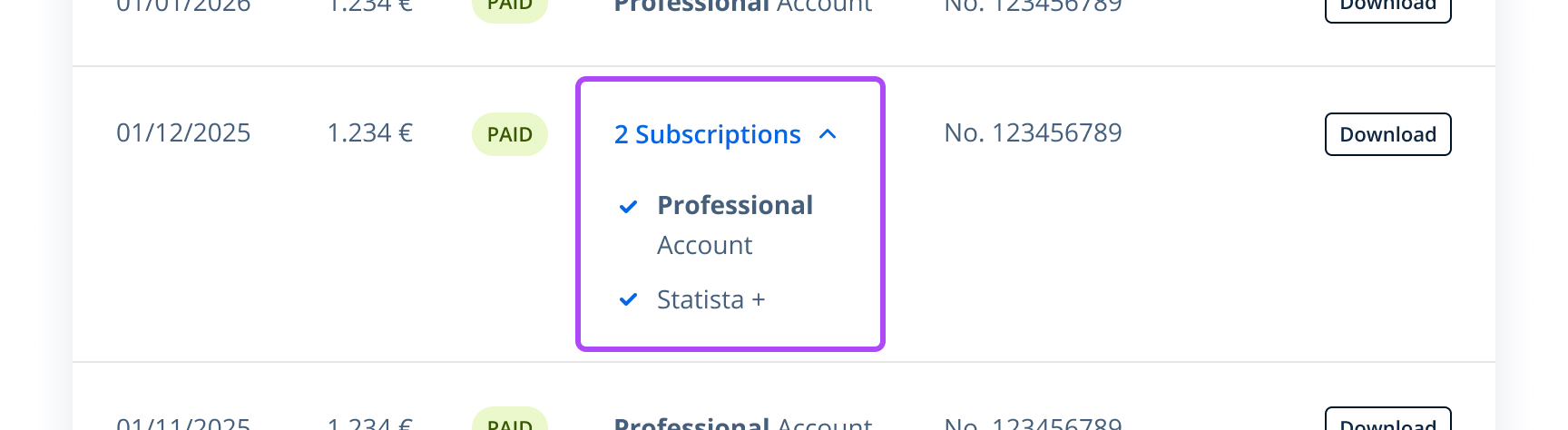
On the right side of the table, you’ll find the Download button, which lets you save your invoice as a PDF.
