Seat Management
Group membership and access
Invited to a group
As a Statista user, you may be added to a Professional Account group either through an invitation or automatically based on your company or university email domain.
In both cases, you’re included right away and can access all features of the group account. No action is required on your side.
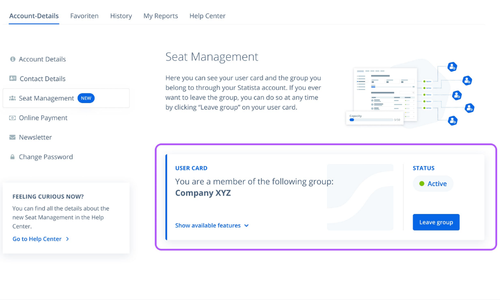
You’ll find your User Card under My Account → User Management. Here, you’ll see your group membership and access details, which we’ll explain in more detail below.
Understanding your User Card
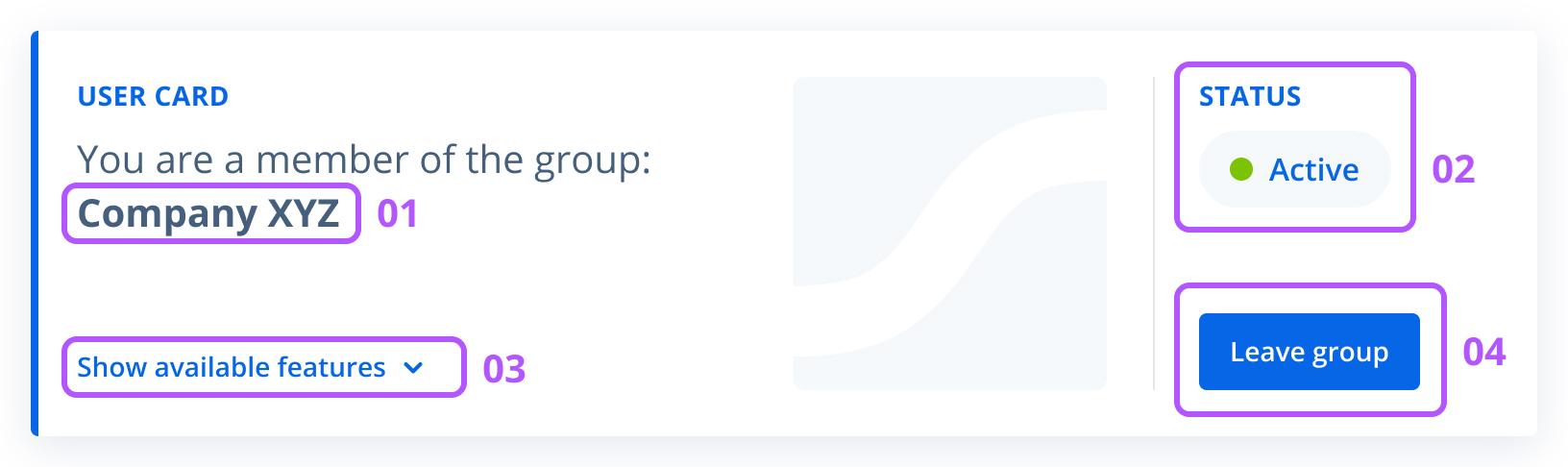
Your User Card gives you a clear overview of your membership. Here you can see:
- The group name you belong to
- Your status within the group, active or inactive
- An overview of the available features included in your membership
- The option to leave the group by selecting "Leave group"
Why can’t I leave the group?
If you have just joined a group, please note that there is a three-month initial period during which you cannot leave the group yourself.
This period is designed to give you enough time to explore and fully benefit from your membership. It also helps prevent misuse and ensures stable system performance.
Why can’t I join the group?
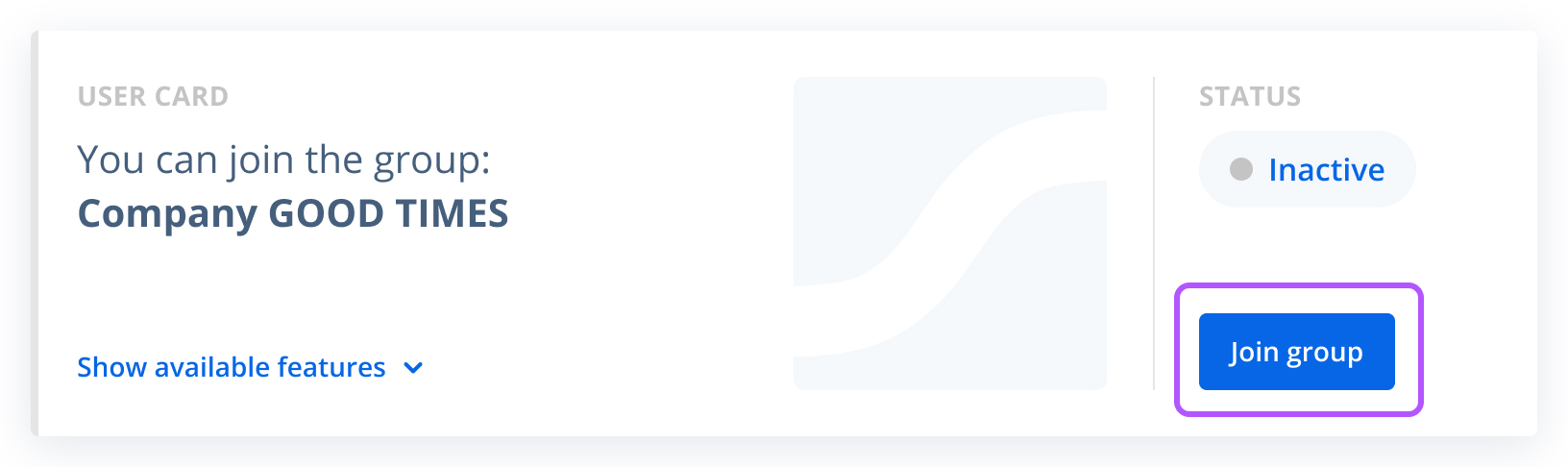
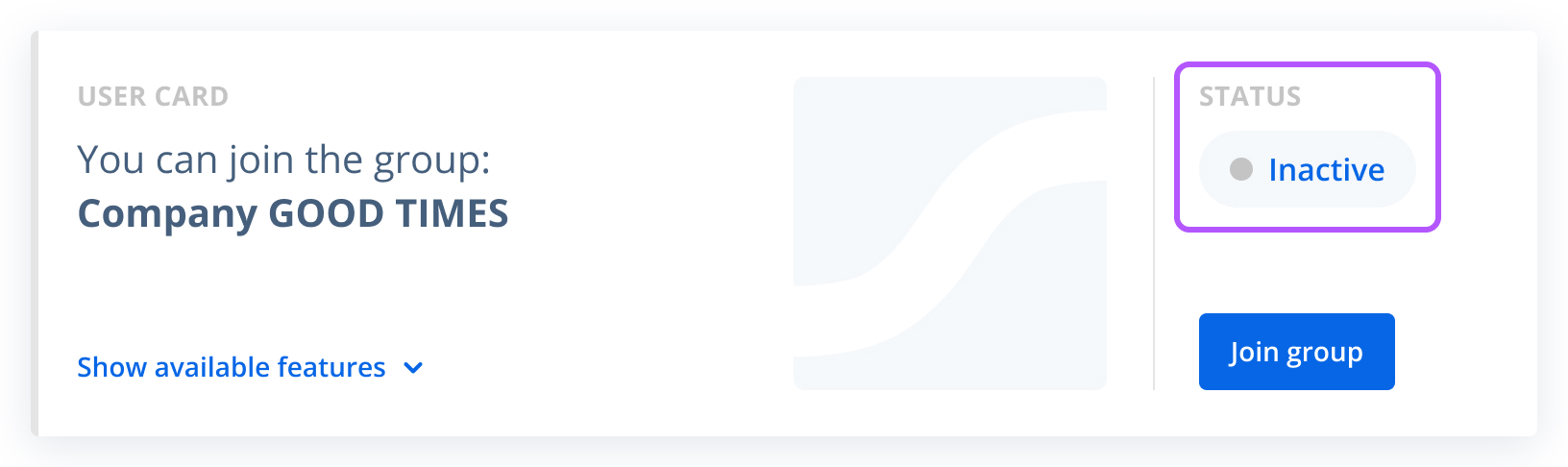
In some cases, when you are part of a company or university, your User Card may show an inactive status, and the "Join group" button may be disabled.
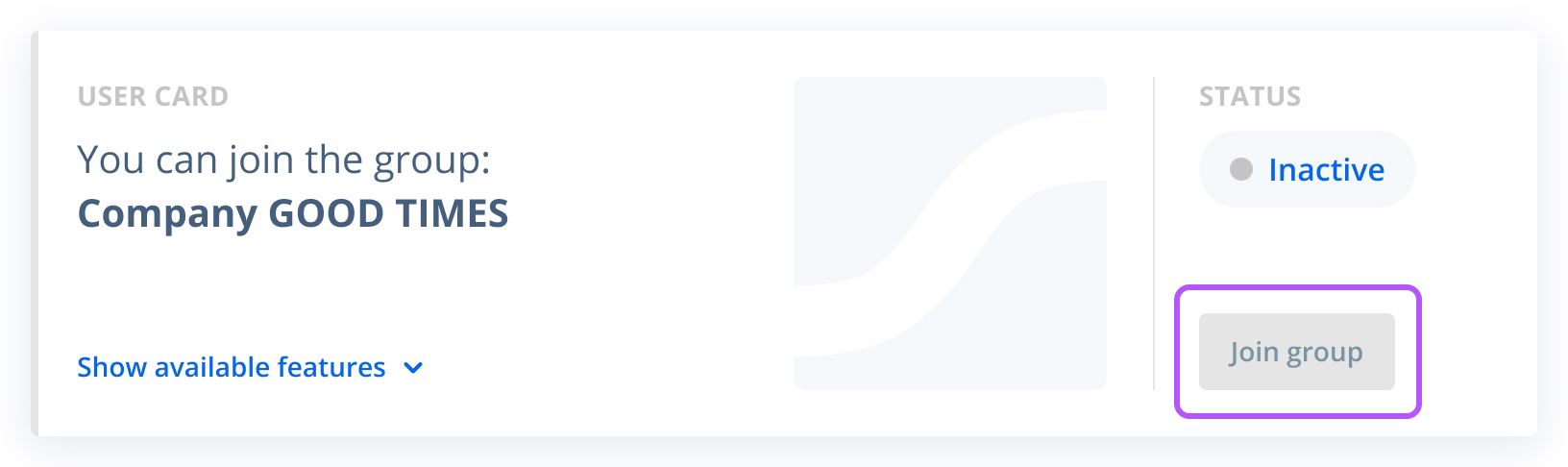
This usually means that, although you are eligible to join the group, all available seats are currently taken.
In this situation, we recommend contacting the administrator responsible for your main Statista account. They can either add more seats to the account or free up existing ones.
As soon as seats become available again, you’ll be able to join the group.